Introduction to PayNow
Datapel PayNow streamlines your cash flow by removing the friction between invoicing and payment. It allows for automated reconciliation, meaning once a customer pays, the payment details are automatically updated in your WMS and linked accounting software (like Xero or MYOB) within seconds.
Note: PayNow is exclusively available for invoices generated directly within Datapel Cloud.WMS.
Workflow Options
|
Setting Up PayNow Integration
Before you can process payments, the module must be activated and configured by a system Administrator.
Contact Datapel Support: Reach out to the Datapel team to have the PayNow module activated for your specific Cloud.WMS environment.
Access Company Preferences: Log in as Admin. Navigate to Options > Preferences > Company.
Enter Connection Details: * Input the PayNow URL provided by the Datapel team.
Select your default ledger/bank account for each accepted payment type to ensure correct accounting mapping.
Enable System-Wide: Ensure the "Enable the PayNow option to all sales" is ticked.
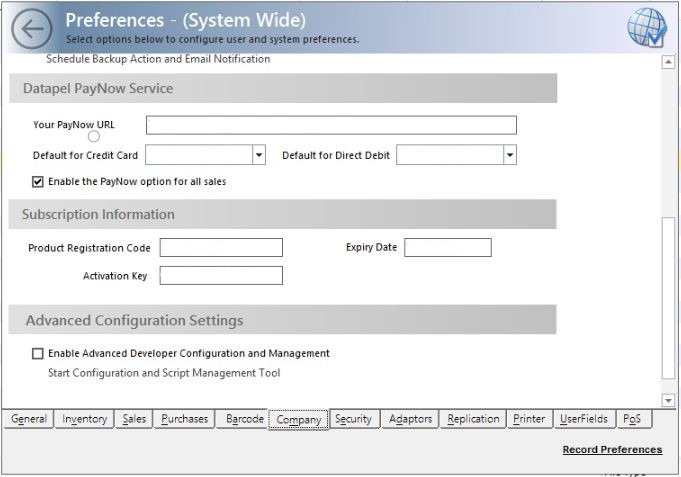
Save Changes: Click Record Preferences.
PDF Invoice Update: Contact Datapel to have the secure "Pay Now" button embedded into your standard PDF invoice layouts.
Workflow: Taking Payments (Phone/In-Person)
Use this method if a customer is providing their card details to you over the phone or at a counter.
Locate the Sale: Open the Sales Register and find the relevant invoice.
Drill to Source: Double-click the record to open the transaction details.
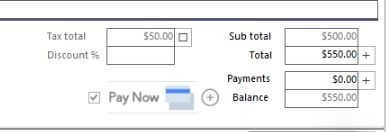
Initiate Payment: Click the PayNow button located at the bottom of the screen.
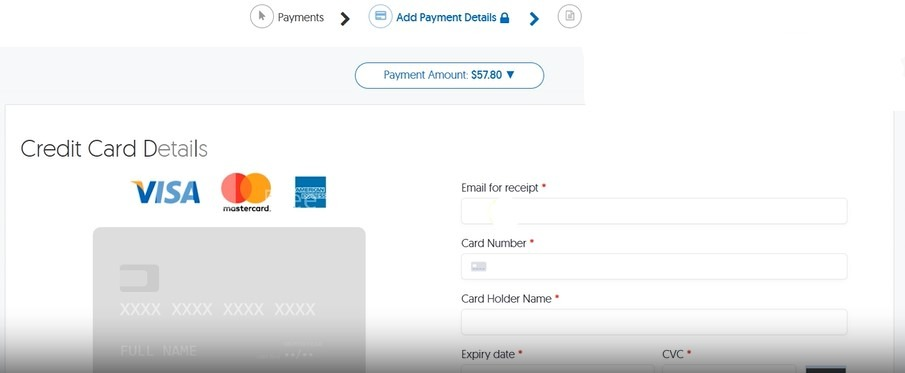
Process Transaction: * A secure window will appear. Enter the customer's credit card details.
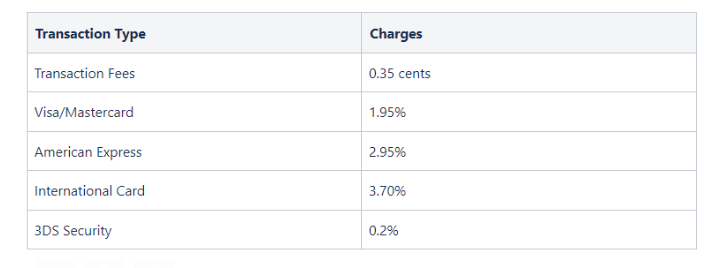
Surcharges: Fees are calculated automatically based on the payment type. Please inform the customer of the final total including these fees.
Confirmation: Once successful, a confirmation email is automatically sent to the customer’s recorded email address.
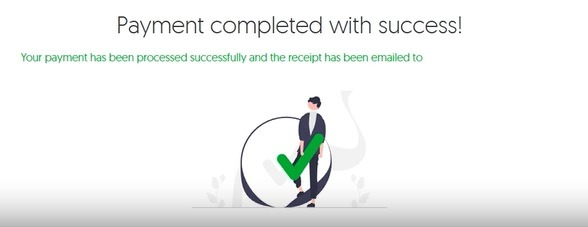
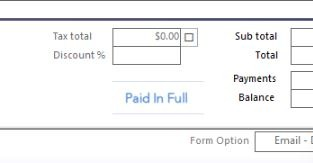
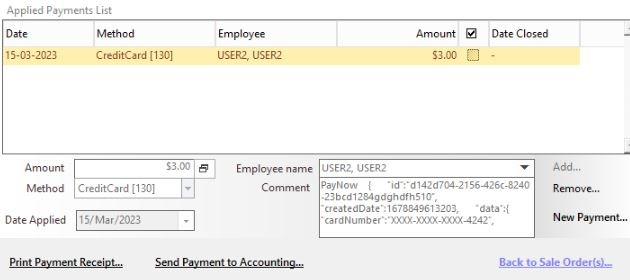
Verify Status: To see the payment record, go back to the invoice, drill to source, and select the Payments tab. The payment note should appear within ~30 seconds.
Workflow: Customer Self-Service (Email & PDF)
You can empower customers to pay their own invoices by including dynamic links in your communications.
Using the [[PAYNOW]] Tag
Datapel uses a special placeholder tag to generate unique, secure payment links for each customer.
One-off Emails: When sending an invoice via the WMS email client, simply type
[[PAYNOW]]anywhere in the email body. The system will replace this text with a clickable link.Permanent Templates: To save time, add the
[[PAYNOW]]tag to your default Email Templates (found in Options > Preferences > Email Templates). This ensures every invoice sent includes a payment option automatically. Cloud WMS Email Templates | Datapel Help Center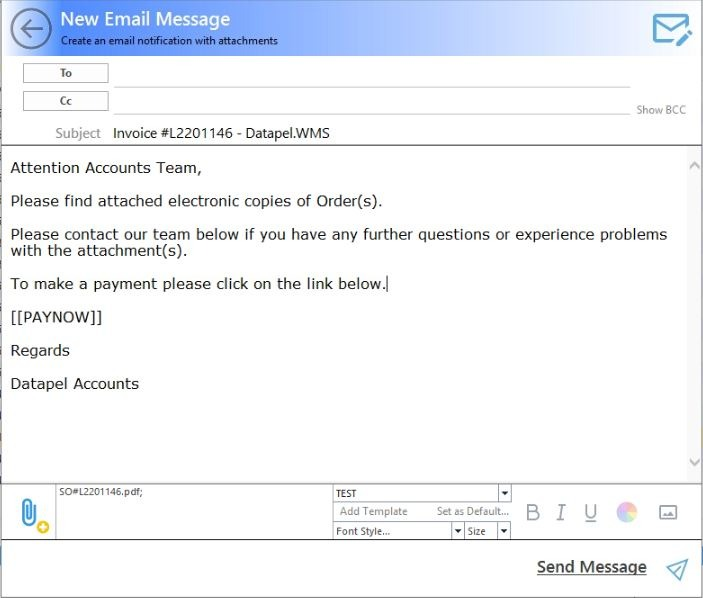
Related Information
Supported Currencies: Currently supports AUD only.
Payment Methods: Supports all major Credit Cards.
Reconciliation: Payments are pushed to your integrated accounting software (Xero/MYOB) automatically.
Limit: Supports one payment per invoice.
Pro Tip: If you want to pass 100% of transaction fees to the customer, ensure this is specified during your initial application with Datapel.
Was this article helpful?
That’s Great!
Thank you for your feedback
Sorry! We couldn't be helpful
Thank you for your feedback
Feedback sent
We appreciate your effort and will try to fix the article