Description
WMS allows you to create multiple barcodes per item within the Inventory Detail screen.
Detail Steps
While the Primary Barcode is typically stored in Custom Fields 1, 2, or 3, Datapel WMS allows you to associate an unlimited number of secondary barcodes with a single item.
Additional barcodes may be required and recognized by WMS as belonging to the same item code.
Why use multiple barcodes?
Supplier Variations: The barcode provided by your supplier differs from your internal primary barcode.
Customer Requirements: Specific customers require their own unique barcode on the product.
Bulk Packaging (Carton Scanning): You need a specific barcode to represent a Pack or Carton (e.g., scanning one barcode automatically adds 10 or 24 units to a shipment).
Step 1: Open Item Inventory Details
Navigate to the Item List registry.
Search for and double-click the item you wish to edit to open the Inventory Detail screen.
Step 2: Access the Barcode Manager
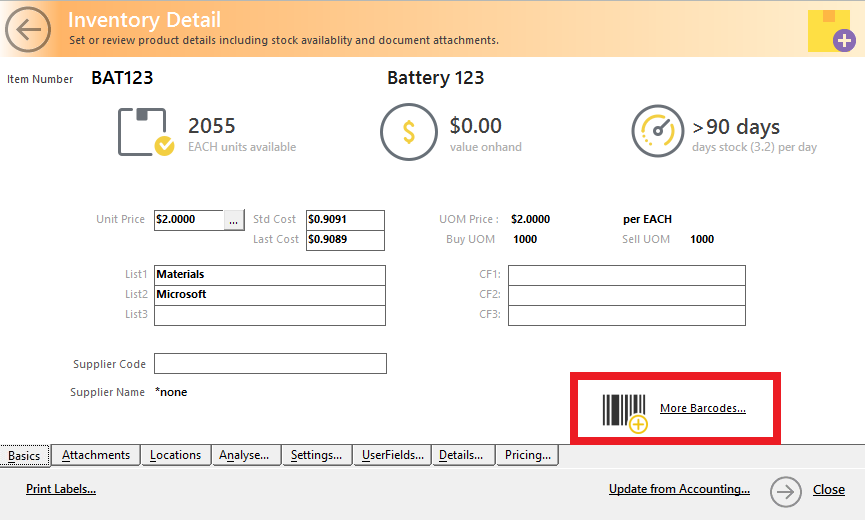
On the Inventory Detail screen, locate and click the More Barcodes... button.
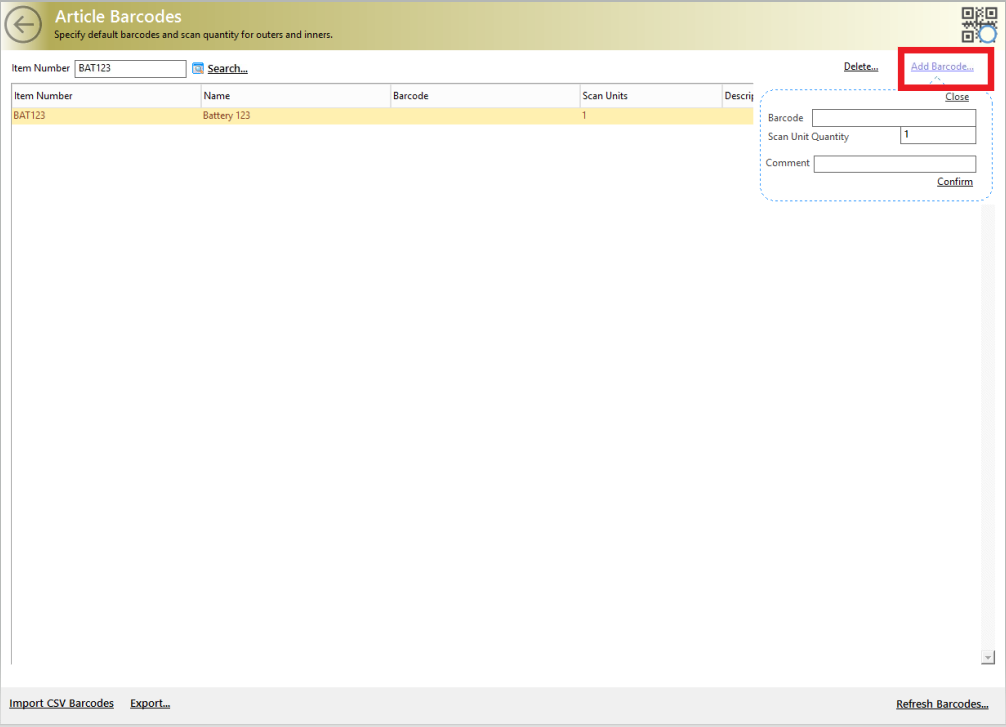
In the resulting window, click Add Barcode....
Step 3: Configure the New Barcode
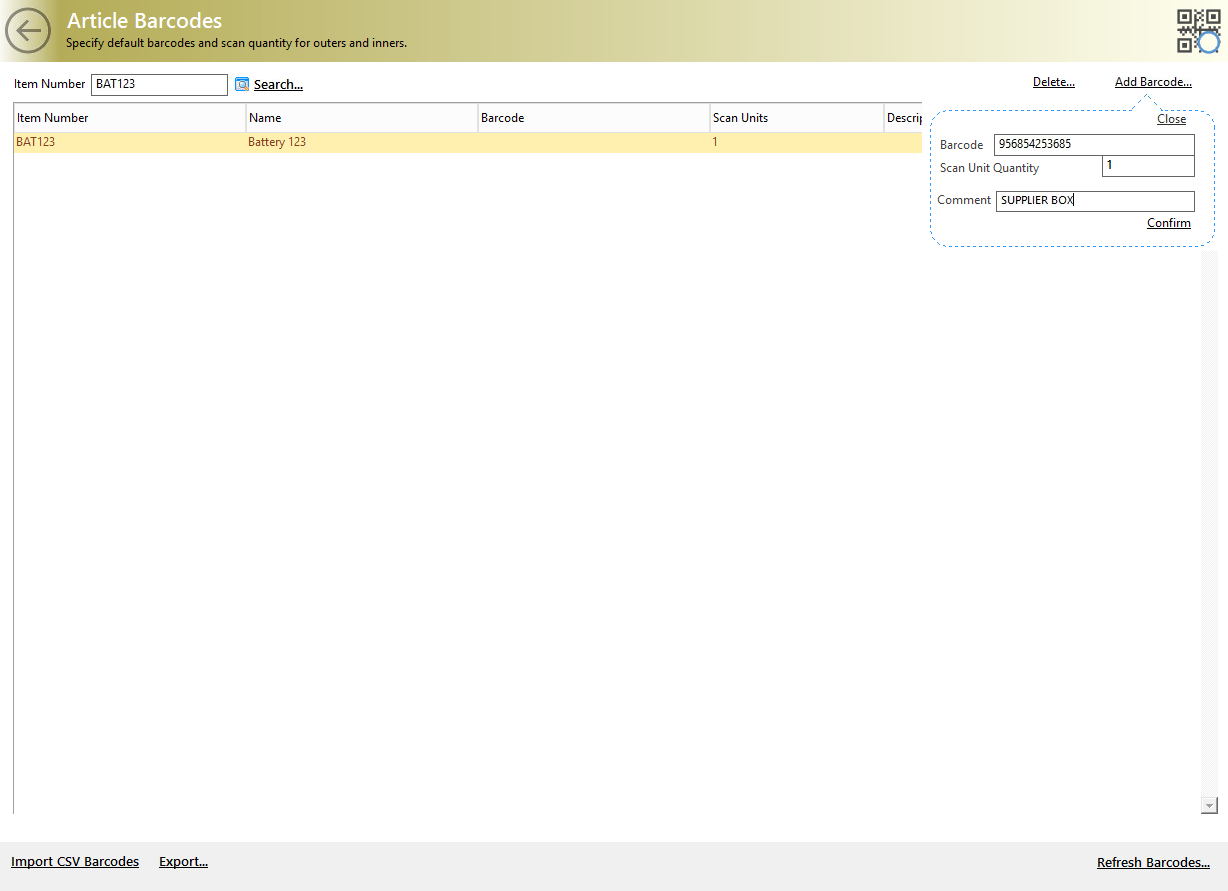
Enter the following details in the Add Barcode pop-up:
Barcode: Type or scan the additional barcode number here.
Scan Unit Quantity: * Set to 1 if it is just an alternative code for a single unit.
Set to a higher number (e.g., 24) if this barcode represents a full carton. When scanned, the WMS will instantly record 24 units.
Comment: Add a brief description for internal reference (e.g., "Supplier B Code" or "Carton of 24").
Step 4: Confirm and Save
Click Confirm.
If you have more barcodes for this item, repeat the process.
Once finished, ensure you save the main Inventory Detail record.
Workflow Efficiency Tips
Pro Tip: Bulk Updates If you need to add multiple barcodes to hundreds of items at once, do not do this manually. We recommend using a CSV import to save time.
Importing in Bulk: Refer to our guide on "Importing Multiple Barcodes to Items" for the correct CSV formatting.
Scanning Priority: The WMS will recognize any barcode listed in this section as the same Item Code, regardless of which one is scanned first.
Refer to "Import Multiple Barcodes to Items" Article.
Related Information
Was this article helpful?
That’s Great!
Thank you for your feedback
Sorry! We couldn't be helpful
Thank you for your feedback
Feedback sent
We appreciate your effort and will try to fix the article