Description
This article explains how to setup a master barcode.
Workflow Options Setting Up Master BarcodesBefore you can begin scanning items in the Datapel Warehouse Management System (WMS), each item must be assigned a Master Barcode. It is important to note that the Barcode Number is distinct from the Item Number. To track barcodes effectively, Datapel uses a specific "placeholder" known as a User Defined Field (UDF) or Custom Field to store this data.
|
Detail Steps
To set the required field for the item master barcode, use Options > Preference > User Fields and choose the name of field needed - in this example, we will use UDF#1.
To change preferences, log in as the Superuser.
Go to Options Preferences, select the UserFields tab below, and set the field name as “Barcode.”
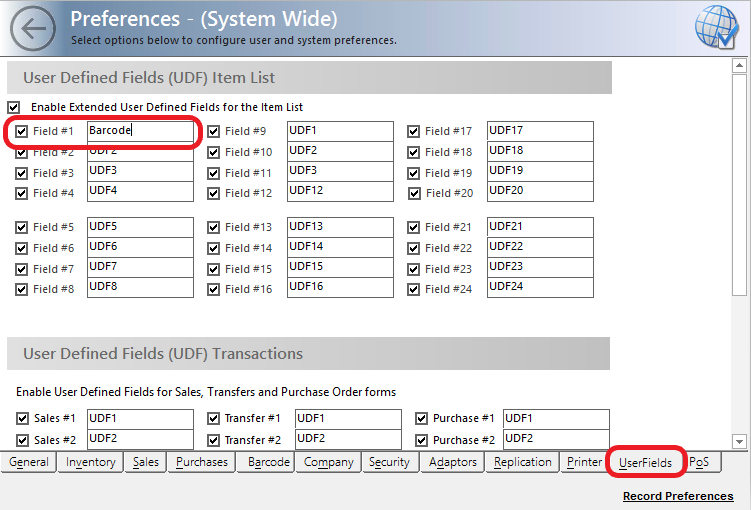
Next Select the Barcodes Tab.
Change the Barcode Field to UDF#1.
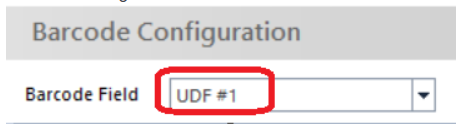
Select Record Preferences (bottom right corner of Preferences) to Save.
Important Hardware & Workflow Tips
USB Connectivity: We do not recommend connecting barcode scanners via a USB hub, as this can cause data latency or power issues. Connect directly to the PC terminal.
Power Supply: For cordless scanners, Datapel recommends using a dedicated power supply connected to the base station to ensure consistent charging and signal strength.
Consultation: Always contact your local Datapel Consultant before making significant changes to barcode logic or hardware settings.
How to Update Your Barcode List
Once your fields are set up, you can populate the barcode numbers using these methods:
Accounting Integration: If using Custom Fields 1, 2, or 3, you should set up the master barcodes in your Accounting software first, then perform a Replication to sync them to Datapel.
Bulk Import: Use the File Import/Export utility to update barcode numbers in bulk via a CSV or text file.
Manual Update: Individual barcodes can be edited directly within the Item List.
Related Information
External Resource: For global barcode standards, visit GS1 Australia
The Barcode preference tab identifies other settings relating to Barcode types, defaults, hardware settings, and other specific barcode workflow actions.
Workflow Restrictions
|
Was this article helpful?
That’s Great!
Thank you for your feedback
Sorry! We couldn't be helpful
Thank you for your feedback
Feedback sent
We appreciate your effort and will try to fix the article