How to Customize Forms and Add Logos
This article guides you through the process of modifying your Datapel WMS forms (such as Sales Confirmations, Picking Slips, and Invoices). Whether you need to update your company branding or adjust text fields, these steps will help you navigate the integrated design environment.
[!IMPORTANT] Technical Requirement: Form customization requires Superuser login credentials. Datapel recommends contacting our support team for complex changes unless you are familiar with SAP Crystal Reports and database fields.
Workflow Restrictions
|
Instructions to Customize Your Forms
Follow these three main stages to access the designer, update your branding, and modify text.
Step 1: Access the Form Designer
Step 2: Adding a Company Logo
Step 3: Adding or Changing Text Values
Step 1: Access the Form Designer
To begin editing, you must launch the specific form you wish to change within the WMS.
Log in to Datapel WMS as a Superuser.
Open the specific Form,,, you wish to modify (e.g., open a Sales Order then click the attachments then go to the invoice form).
In the top menu or action drop-down, select Start Design Mode.
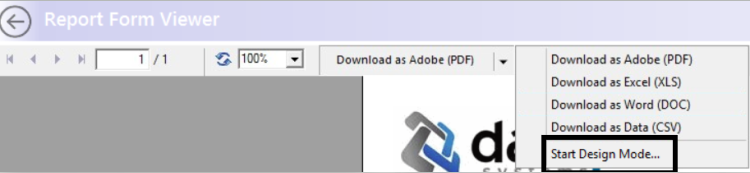
The Report Form Designer window will open.
Click on the Design tab to begin editing the layout.
[!NOTE] The Design Form button is only available for transactional forms (Picking Slips, Invoices, etc.). Standard analytical reports cannot be modified using this specific method.
Step 2: Adding a Logo
Keep your documentation professional by ensuring your current company logo is visible.
Inside the Form Designer, click the Insert Picture icon located in the top toolbar.
Browse your local computer to locate your logo file and click Open.
Click on the form layout to place the image. You can then click and drag the logo to your preferred position.
Switch to the Preview tab to verify the placement and scaling.
Click Save this Form to commit the changes.
Step 3: Adding or Changing Text Values
You can update static text like "Terms and Conditions" or "Thank you for your business" easily.
To Edit Existing Text: Double-click any existing text box. Type your new value and click anywhere outside the box to exit.
To Add New Text: Right-click on a clear area of the form and select Insert Text Object.
Positioning: Move the text box to the desired location.
Check your work by clicking the Preview tab.
Click Save this Form to finalize.
Related Information
None
Was this article helpful?
That’s Great!
Thank you for your feedback
Sorry! We couldn't be helpful
Thank you for your feedback
Feedback sent
We appreciate your effort and will try to fix the article