Introduction
When using Datapel WMS, your browser may occasionally block necessary windows, such as report downloads, labels, or file exports. If your browser settings are restricted, you will see a prompt stating: "The Pop-up Blocker is enabled." To ensure full functionality of the WMS, you must allow pop-ups for your specific Datapel URL.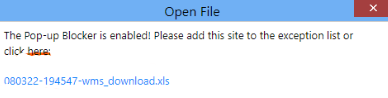
Instructions to Disable Pop-up Blockers
Follow these steps to configure your browser to work seamlessly with Datapel WMS.
Step 1: Identify your Datapel WMS URL
Step 2: Access Browser Site Settings
Step 3: Add Datapel to the 'Allow' List
Step 1: Identify your Datapel WMS URL
Before changing settings, note your specific company portal address. It usually follows this format: https://yourcompanyname.datapelwms.com/.
Step 2: Access Browser Site Settings (Google Chrome)
Open your Chrome browser and navigate to your Datapel WMS login page.
In the address bar, look for a Lock icon (Secure) or an External Window icon with a red 'x' at the far right.
Click the Lock icon and select Site settings.
Step 3: Add Datapel to the 'Allow' List
In the Settings tab that opens, scroll down to find Pop-ups and redirects.
Change the dropdown selection from Block (default) to Allow.
Return to your Datapel WMS tab and Refresh the page to apply the changes.
[!IMPORTANT] IT Permissions: If you find these settings are "Managed by your organization" and cannot be changed, please contact your local IT administrator to whitelist
*.datapelwms.comacross your network.
Related Information
Was this article helpful?
That’s Great!
Thank you for your feedback
Sorry! We couldn't be helpful
Thank you for your feedback
Feedback sent
We appreciate your effort and will try to fix the article