Introduction
When working in Datapel Cloud WMS, you may occasionally encounter a "This content is blocked" error message when attempting to print documents like Sales Advice or Purchase orders. In some cases, the print dialog box may simply fail to appear at all.
This usually happens because Google Chrome's security settings are preventing the PDF preview from loading. Follow the steps below to adjust your browser settings and restore printing functionality.
Instructions to Resolve Chrome Printing Issues
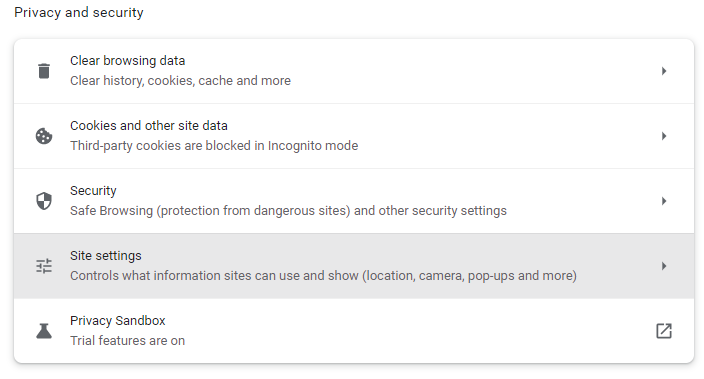
Step 1: Access Chrome Site Settings Open your Google Chrome browser. Click the three vertical dots (⋮) in the top-right corner and select Settings. On the left-hand sidebar, click Privacy and security, then select Site Settings from the main menu.
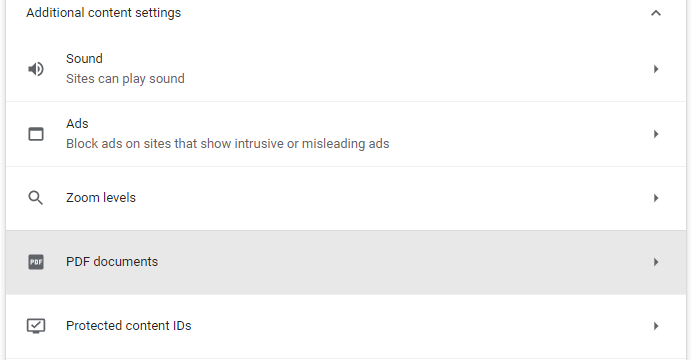
Step 2: Locate PDF Document Settings Scroll to the bottom of the Site Settings page. Click on Additional content settings to expand the menu, then select PDF documents.
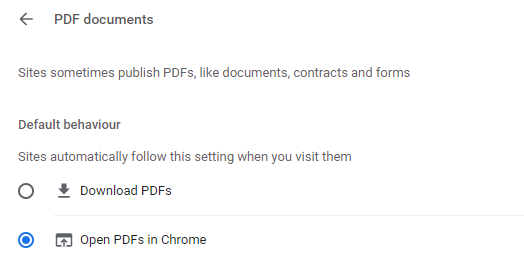
Step 3: Enable "Open PDFs in Chrome" Ensure the option "Open PDFs in Chrome" is selected.
Related Information
Troubleshooting CloudWMS Connectivity, Timeouts, and Performance
Datapel iQ (QlikView) Keyboard Shortcuts Reference
Was this article helpful?
That’s Great!
Thank you for your feedback
Sorry! We couldn't be helpful
Thank you for your feedback
Feedback sent
We appreciate your effort and will try to fix the article