When logging into Datapel WMS via Google Chrome, you or your team members may encounter a browser prompt asking for permission to "Access other apps & services on this device" or allow "Local Network Access."
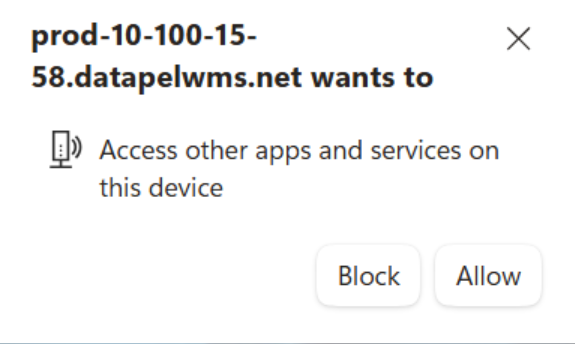
This article explains why Google Chrome displays this prompt and provides a simple step-by-step guide to adjust your browser settings. Granting this permission ensures seamless communication between Chrome and your local warehouse hardware/network resources, preventing issues like system slowness, stalling, or sudden disconnects.
Why does Datapel WMS require this permission?
Google Chrome includes built-in security features designed to protect devices on local networks. When Datapel WMS communicates with local services on your network (such as printers, handheld barcode scanners, or local gateway integrations), Chrome requests your permission to establish this connection.
If this pop-up is dismissed, blocked, or ignored:
Chrome restricts background communication with local network services.
Datapel WMS may experience severe lagging, delayed responses, or unexpected logouts.
Important Note: This is a standard Google Chrome safety prompt. No changes are required on your Datapel WMS server or database enabling this setting in Chrome is a quick, one-time permission fix on your local workstation.
Instructions: Enabling Local Network Access in Chrome
Follow the step-by-step instructions below to grant Chrome the necessary permissions and restore full performance to your WMS workspace.
Step 1: Open Site Settings in Google Chrome
Open Google Chrome and navigate to your Datapel WMS login or dashboard page.
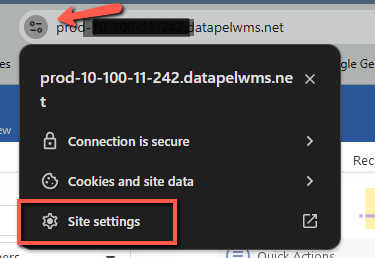
Click the View site information icon located on the far left of the address bar (this appears as a padlock, tune/sliders icon, or circled "i" depending on your Chrome version).
From the dropdown menu, click Site settings.
Step 2: Allow Local Network Access
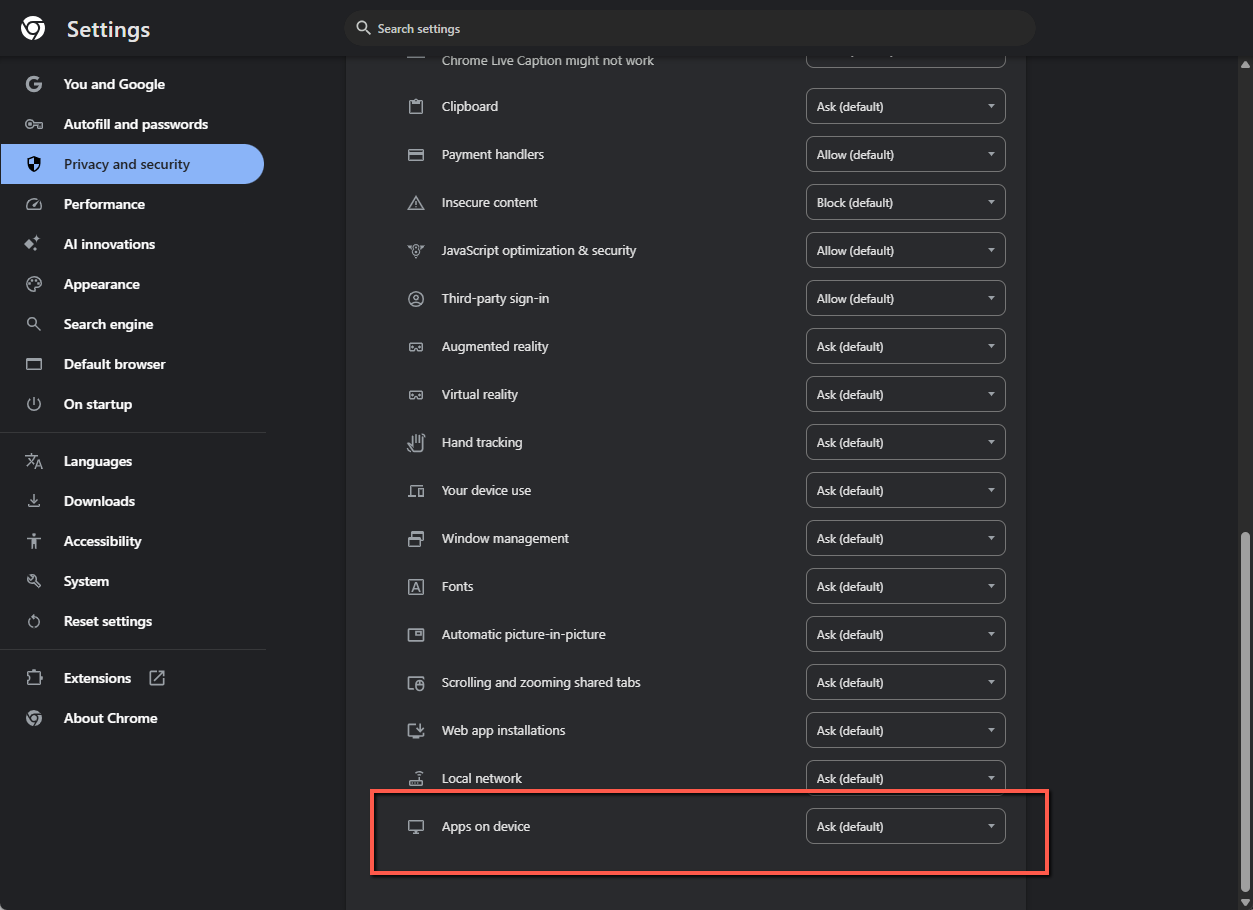
On the Site Settings page, scroll down through the list of permissions to locate Local network access (on some Chrome versions, this may display as Apps on device).
Click the dropdown menu next to it and select Allow.
Tip: If you do not see the specific option listed, ensure your Google Chrome browser is updated to the latest version.
Step 3: Relaunch Chrome and Test WMS
Completely close all Google Chrome browser windows to apply the new permissions.
Re-open Google Chrome and launch Datapel WMS.
Log in and confirm that performance is smooth and responsive.
Was this article helpful?
That’s Great!
Thank you for your feedback
Sorry! We couldn't be helpful
Thank you for your feedback
Feedback sent
We appreciate your effort and will try to fix the article