Summary
The Unit of Measure (UOM) defines how items are bought, stored, and sold in Datapel WMS.
Each product can have a Buy UOM (e.g., Box of 10) and a Sell UOM (e.g., Each).
This article explains how UOMs are used, when they can be modified, and what to do if changes are required after transactions have occurred.
Expected Result
Users should be able to:
Configure correct Buy UOM and Sell UOM when creating new items.
Understand why UOM fields become locked after transactions.
Background
UOM values are critical for maintaining accurate stock, pricing, and transaction data. Once an item has been used in a Purchase Order, Sales Order, or Adjustment, WMS locks UOM fields to preserve transaction integrity and avoid mismatched conversions.
Steps to Configure UOMs for New Items
1. Create the Item in the Accounting System
Create the new item in Xero or MYOB.
Allow replication to sync the new item to WMS.
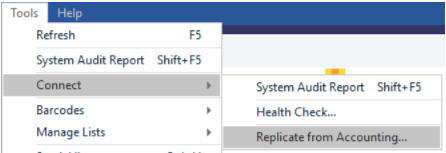
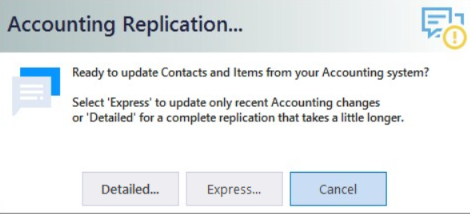
From the Tools menu, select Connect > Replicate from Accounting> Select Detailed
2. Set UOM in WMS Before Transactions
In WMS, navigate to:
Item Register> Search the new item > Right-click on the item and select Show Item Details.
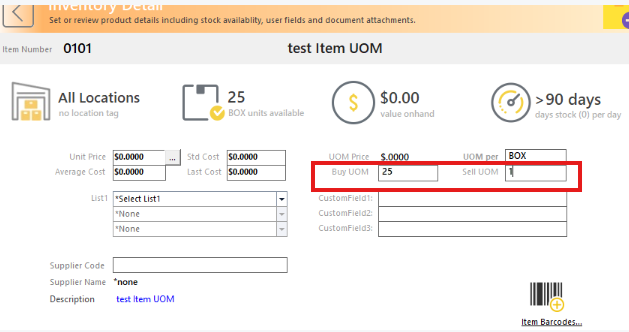
Buy UOM
Defines the unit of measure used when purchasing or receiving stock from suppliers.
Example:
If you purchase in boxes containing 10 units each, set:
Buy UOM = Box (1 Box = 10 Each)
When you receive 2 Boxes, Datapel automatically records 20 Each in stock.
Sell UOM
Defines the unit of measure used when selling or dispatching to customers.
Example:
If you sell items individually, set:
Sell UOM = Each (1)
When you sell 1 Each, Datapel deducts 1 unit from inventory.
Save the changes before any stock or sales transactions occur.
⚠️ Once an item has purchase or sales history, UOM fields will be locked and cannot be edited through the interface.
Was this article helpful?
That’s Great!
Thank you for your feedback
Sorry! We couldn't be helpful
Thank you for your feedback
Feedback sent
We appreciate your effort and will try to fix the article