Introduction
Creating an item correctly is the foundation of accurate inventory management. This guide walks you through the manual process of adding a new product directly within Datapel WMS SE. This method is specifically used when you are adding items that do not originate from a connected accounting system.
Instructions to Create a New Item
Step 1: Access the New Item Menu
To begin, navigate to the creation wizard within your workspace.
Open the Datapel WMS application.
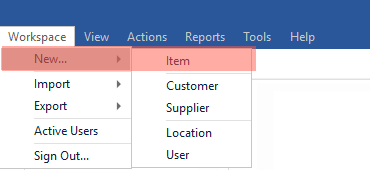
Click on the Workspace tab located in the upper-left corner of the interface.
Click the New button and select Item from the dropdown menu.
Step 2: Enter Item Details and Information
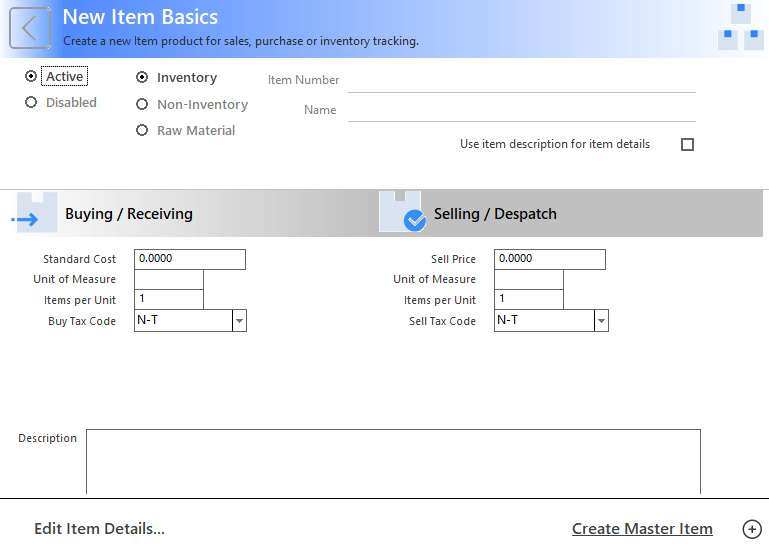
Fill in the product name, SKU/Code, and descriptions. The most critical part of this step is defining how you handle the stock via Units of Measure (UOM).
Buy UOM (Purchasing): This is how you receive stock from suppliers.
Example: If you buy in boxes of 10, set Buy UOM to Box. When you receive 2 boxes, the system automatically records 20 units in your inventory.
Sell UOM (Sales): This is how you ship items to customers.
Example: If you sell items individually, set Sell UOM to Each. The system will deduct 1 unit per sale.
Step 3: Save and Finalize
Review all entries for accuracy. Once confirmed, click Save. The item is now ready for stock adjustments, purchasing, or sales orders.
⚠️ Critical Note on Units of Measure
Important: Ensure your UOM settings are 100% accurate before processing any transactions. Once an item has a purchase or sales history, the UOM fields will be locked to maintain data integrity and cannot be edited through the standard interface.
Was this article helpful?
That’s Great!
Thank you for your feedback
Sorry! We couldn't be helpful
Thank you for your feedback
Feedback sent
We appreciate your effort and will try to fix the article